Typically C:\Program Files\Common Files\Microsoft Shared\web server extensions\12\.
.
Showing posts with label SharePoint Development. Show all posts
Showing posts with label SharePoint Development. Show all posts
Thursday, March 26, 2009

Friday, March 20, 2009
SharePoint Development with Silverlight 2.0
There are currently three modifications to make to your SharePoint environment for hosting Silverlight 2.0. First install the Silverlight runtime from http://silverlight.net/GetStarted/. Then...
- Add a MIME type for Silverlight. I'm running my SharePoint farm on Windows Server 2003 (these instructions are a little different for Windows Server 2008). On the SharePoint server open IIS, right-click the server node and select Properties. Click the "MIME Types..." button. Click the "New..." button and add a MIME type. Extension: .xap (include the dot ".") MIME Type: application/x-silverlight-2.
- Add System.Web.Silverlight.dll to the GAC. I found System.Web.Silverlight.dll at "C:\Program Files\Microsoft SDKs\Silverlight\v2.0\Libraries\Server\" in my [Windows Server 2003 R2] development environment. So from a command prompt (at "C:\Program Files\Microsoft SDKs\Windows\v6.0a\bin") I entered the command: gacutil -i "C:\Program Files\Microsoft SDKs\Silverlight\v2.0\Libraries\Server\System.Web.Silverlight.dll". Verify the installation by navigating to C:\WINDOWS\assembly (on a Windows 2003 Server OS): System.Web.Silverlight.dll should appear in the list.
- Modify the SharePoint web.config file. This file is typically located at C:\Inetpub\wwwroot\wss\VirtualDirectories\80\ but your mileage may vary.
A good article to start with is Light Up SharePoint With Silverlight 2 Web Parts. Be sure to do the above in the order given. For example, step 3 (web.config) relies on System.Web.Silverlight.dll being in the GAC.
Tuesday, March 17, 2009
MSDN Mag: 10 Best Practices for Building SharePoint Solutions
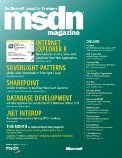

The March 2009 issue of MSDN Magazine has an excellent "best practices" article for developing in SharePoint.
Friday, March 6, 2009
Outline for SharePoint 2007 Development Environment
With less than a year of SharePoint experience, below is a sketch of the steps I've been taking to build a SharePoint developer desktop environment. I'm sure I will be fine-tuning this. For example, I am not using Disk Differencing which would probably make things easier by using the same base OS image to start...
- Create a virtual machine (I use MS Virtual PC 2007).
- Install Windows Server 2003 R2 Enterprise. I'm not certain what the optimal version of Windows 2003 is so a just use the sledgehammer approach).
- Install IIS (include SMTP).
- Apply OS patches.
- Install Visual Studio 2008 Professional.
- Apply any patches and/or Service Packs.
By installing as a standalone no network accounts are required.
I would also like to install SQL Server 2005 in there somewhere (my guess is this will have to be before SharePoint is installed) but I'm not certain of a few configuration elements yet.
Tony Zink has a number of posts that describe at length how to create a VPC development and demo image at http://www.pptspaces.com/sharepointreporterblog/lists/posts/post.aspx?ID=28. Someone also posted a comment about a VHD Resizer tool that looked handy.
Update (4/8/2009): My wife also has a thorough guide for installing SharePoint on a VPC here.
Tuesday, February 10, 2009
STSADM
The following sample stsadm commands are useful when working with Features and Solutions. The stsadm.exe application can be found at C:\Program Files\Common Files\Microsoft Shared\web server extensions\12\BIN\.
Deactivate a feature:
stsadm –o deactivatefeature –name wileyfeature–url http://sp2007dev/sitedirectory/wroxprosp2007teamsite
Uninstall a feature:
stsadm –o uninstallfeature –name wileyfeature
Add a solution to the Solution Store:
stsadm –o addsolution –filename c:\wsp\wileyfeature.wsp
Deploy a solution from the Solution Store:
stsadm –o deploysolution –name wileyfeature.wsp -immediate
Retract a solution from the Solution Store (do this before deleting the solution completely from the Solution Store – this is the opposite of the deploysolution switch):
stsadm –o retractsolution –name wileyfeature.wsp –immediate
Delete a solution from the Solution Store (do this only after retracting the solution from the web server – this is the opposite of the addsolution switch):
stsadm –o deletesolution –name wileyfeature.wsp
-----
Deactivate a feature:
stsadm –o deactivatefeature –name wileyfeature–url http://sp2007dev/sitedirectory/wroxprosp2007teamsite
Uninstall a feature:
stsadm –o uninstallfeature –name wileyfeature
Add a solution to the Solution Store:
stsadm –o addsolution –filename c:\wsp\wileyfeature.wsp
Deploy a solution from the Solution Store:
stsadm –o deploysolution –name wileyfeature.wsp -immediate
Retract a solution from the Solution Store (do this before deleting the solution completely from the Solution Store – this is the opposite of the deploysolution switch):
stsadm –o retractsolution –name wileyfeature.wsp –immediate
Delete a solution from the Solution Store (do this only after retracting the solution from the web server – this is the opposite of the addsolution switch):
stsadm –o deletesolution –name wileyfeature.wsp
-----
Subscribe to:
Posts (Atom)