Tuesday, March 24, 2009
SharePoint Governance
Microsoft has an excellent SharePoint Governance site at http://technet.microsoft.com/en-us/office/sharepointserver/bb507202.aspx.

Friday, March 20, 2009
SharePoint Development with Silverlight 2.0
There are currently three modifications to make to your SharePoint environment for hosting Silverlight 2.0. First install the Silverlight runtime from http://silverlight.net/GetStarted/. Then...
- Add a MIME type for Silverlight. I'm running my SharePoint farm on Windows Server 2003 (these instructions are a little different for Windows Server 2008). On the SharePoint server open IIS, right-click the server node and select Properties. Click the "MIME Types..." button. Click the "New..." button and add a MIME type. Extension: .xap (include the dot ".") MIME Type: application/x-silverlight-2.
- Add System.Web.Silverlight.dll to the GAC. I found System.Web.Silverlight.dll at "C:\Program Files\Microsoft SDKs\Silverlight\v2.0\Libraries\Server\" in my [Windows Server 2003 R2] development environment. So from a command prompt (at "C:\Program Files\Microsoft SDKs\Windows\v6.0a\bin") I entered the command: gacutil -i "C:\Program Files\Microsoft SDKs\Silverlight\v2.0\Libraries\Server\System.Web.Silverlight.dll". Verify the installation by navigating to C:\WINDOWS\assembly (on a Windows 2003 Server OS): System.Web.Silverlight.dll should appear in the list.
- Modify the SharePoint web.config file. This file is typically located at C:\Inetpub\wwwroot\wss\VirtualDirectories\80\ but your mileage may vary.
A good article to start with is Light Up SharePoint With Silverlight 2 Web Parts. Be sure to do the above in the order given. For example, step 3 (web.config) relies on System.Web.Silverlight.dll being in the GAC.
OWA Web Parts in SharePoint
 I was using Outlook Web Access web parts on my "My Site" page and noticed that the "My Inbox" web part doesn't have a "New" button allowing me to create a new email. This seems a bit inconsistent because I can open an email and reply to it.
 So I went looking for a way to display the "New" button. I discovered that there is a lot of flexibilty when displaying OWA parts in SharePoint if you are using Exchange 2007. However at my company we are currently using Exchange 2003.
I opened OWA in a browser window and was able to get just my inbox to appear using the http://[server]/exchange/[myname@mycompany.com]/inbox/?cmd=contents. I can do the same with my calendar using http://[server]/exchange/[myname@mycompany.com]/calendar/?cmd=contents&view=monthly. However when I return to SharePoint and attempt to do the same thing I have issues. Site Actions > Edit Page, then Edit > Modify Shared Web Part gets me to the field where I can enter the URL (replace the Mail Server Address"http://[server]/exchange/" with whatever you would like to see the results).
After trying a number of URL/querystring combinations, including those above, I've come to the conclusion that the web part code is obviously doing something to the querystring other than just appending information to it. For example I attempted an injection approach by using one of the URLs above with an ampersand "&" at the end but that didn't work.
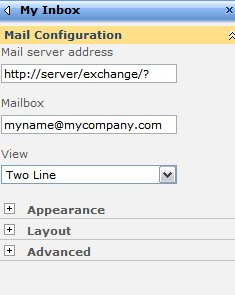
I discovered that I could get the entire OWA interface (Inbox, Calendar, Tasks, etc.) in a single My Inbox web part by entering "http://[server]/exchange/?/" (note the question mark denoting the beginning of a querystring) in the Mail Server Address box. This has the benefit of squeezing everything in a single web part rather than spreading several web parts around.
.
Tuesday, March 17, 2009
MSDN Mag: 10 Best Practices for Building SharePoint Solutions

The March 2009 issue of MSDN Magazine has an excellent "best practices" article for developing in SharePoint.
Friday, March 6, 2009
Outline for SharePoint 2007 Development Environment
With less than a year of SharePoint experience, below is a sketch of the steps I've been taking to build a SharePoint developer desktop environment. I'm sure I will be fine-tuning this. For example, I am not using Disk Differencing which would probably make things easier by using the same base OS image to start...
- Create a virtual machine (I use MS Virtual PC 2007).
- Install Windows Server 2003 R2 Enterprise. I'm not certain what the optimal version of Windows 2003 is so a just use the sledgehammer approach).
- Install IIS (include SMTP).
- Apply OS patches.
- Install Visual Studio 2008 Professional.
- Apply any patches and/or Service Packs.
By installing as a standalone no network accounts are required.
I would also like to install SQL Server 2005 in there somewhere (my guess is this will have to be before SharePoint is installed) but I'm not certain of a few configuration elements yet.
Tony Zink has a number of posts that describe at length how to create a VPC development and demo image at http://www.pptspaces.com/sharepointreporterblog/lists/posts/post.aspx?ID=28. Someone also posted a comment about a VHD Resizer tool that looked handy.
Update (4/8/2009): My wife also has a thorough guide for installing SharePoint on a VPC here.
Sunday, March 1, 2009
SharePoint Installation
- Create the following Domain accounts. Remember to give them strong passwords.
- SP2007Admin
- SP2007Search
- SP2007ContentAccess
- SP2007SSP
- SP2007MOSSAppPool
- SP2007Admin
- Install Base Farm with CA
- Create the VM and installed Windows 2003 R2
- Install OS patches
- Install IIS
- Install patches
- Install .NET 2.0 and 3.0 frameworks
- Install patches
- Install SQL Server 2005
- Install latest Service Pack and patches/hotfixes
- In SQL Server add the SP2007Admin account created above to SQL Server…
- Grant the account login access (Security > Logins) to the SQL Server
- Add the account to the following SQL Server Roles (Security > Server Roles): sysadmin, securityadmin, dbcreator
- Grant the account login access (Security > Logins) to the SQL Server
- Log off the VM and log back on using the SP2007Admin account.
- Install SharePoint. This will create the CA (Central Administration) site. By convention I use 5555 as the port for CA.
- Add your account to the Farm Administrators group (Site Actions > Site Settings > Users & Permissions > People & Groups > New > Add Users)
- Add services (Operations > Topology & Services > Services on Server).
- Turn on WSS Search (use [domain]\SP2007Search & [domain]\SP2007ContentAccess accounts)
- Next turn on MOSS Search (use SP2007Search)
- Start Excel Services (only available with SP 2007 Enterprise version)
- Turn on WSS Search (use [domain]\SP2007Search & [domain]\SP2007ContentAccess accounts)
- Create the VM and installed Windows 2003 R2
- Create SSP
**Prerequisite: Search must be turned on and configured.- Application Management > Office SharePoint Services Shared Services
- New SSP
- Create new web app (same screen). By convention I use 6666 as the port for the SSP. Use [domain]\SP2007SSP as the service account.
- Create a new web app for MySites. By convention I use 7777 as the port for MySites. Use [domain]\SP2007SSP as the service account.
- After the SSP has been created login to the SSP (SSP1) using the SP2007Admin account. Under Site Actions > Site Settings > Site Collection Administrator (under Users & Permissions) add your network login ID as a Site Collection Administrator.
- Still in the SSP, Site Actions > Site Settings > People & Groups, click Site Permissions from the Quick Launch bar and add your account with Full Control rights.
- Still on the SSP Home Page, under User Profiles & MySites, click Personalization Services & Permissions. Add your network login ID and select all rights.
- Test your work. Use your own network login ID.
- User Profiles and MySites: User Profiles & Properties. Start a full AD import. (Note the time and day of the week so you can do this before audience compilation.)
- Audiences: Create and compile a test audience.
- Search Settings: not much to test yet…
- Email settings…
- User Profiles and MySites: User Profiles & Properties. Start a full AD import. (Note the time and day of the week so you can do this before audience compilation.)
- Application Management > Office SharePoint Services Shared Services
- Create a Web Application for Content Sites
- In CA > Application Management (tab) > Create or Extend Web Application > Create New
- Use port 80
- Use the [domain]\SP2007MOSSAppPool AD account
- Create the web application and navigate to Create Site Collection via link.
- Create Site Collection using the Publishing (tab) > Collaboration Portal template.
- In CA > Application Management (tab) > Create or Extend Web Application > Create New
Nice California Red (Folie A Deux)
I had a red wine with dinner last night that I thoroughly enjoyed: Folie A Deux - Menage A Trois.
Wednesday, February 25, 2009
Tips for Analyzing SharePoint Usage and Performance Diagnostics
Two recent posts on the SharePoint Team Blog I would like to examine more thoroughly when I have the chance...
Tuesday, February 10, 2009
STSADM
The following sample stsadm commands are useful when working with Features and Solutions. The stsadm.exe application can be found at C:\Program Files\Common Files\Microsoft Shared\web server extensions\12\BIN\.
Deactivate a feature:
stsadm –o deactivatefeature –name wileyfeature–url http://sp2007dev/sitedirectory/wroxprosp2007teamsite
Uninstall a feature:
stsadm –o uninstallfeature –name wileyfeature
Add a solution to the Solution Store:
stsadm –o addsolution –filename c:\wsp\wileyfeature.wsp
Deploy a solution from the Solution Store:
stsadm –o deploysolution –name wileyfeature.wsp -immediate
Retract a solution from the Solution Store (do this before deleting the solution completely from the Solution Store – this is the opposite of the deploysolution switch):
stsadm –o retractsolution –name wileyfeature.wsp –immediate
Delete a solution from the Solution Store (do this only after retracting the solution from the web server – this is the opposite of the addsolution switch):
stsadm –o deletesolution –name wileyfeature.wsp
-----
Deactivate a feature:
stsadm –o deactivatefeature –name wileyfeature–url http://sp2007dev/sitedirectory/wroxprosp2007teamsite
Uninstall a feature:
stsadm –o uninstallfeature –name wileyfeature
Add a solution to the Solution Store:
stsadm –o addsolution –filename c:\wsp\wileyfeature.wsp
Deploy a solution from the Solution Store:
stsadm –o deploysolution –name wileyfeature.wsp -immediate
Retract a solution from the Solution Store (do this before deleting the solution completely from the Solution Store – this is the opposite of the deploysolution switch):
stsadm –o retractsolution –name wileyfeature.wsp –immediate
Delete a solution from the Solution Store (do this only after retracting the solution from the web server – this is the opposite of the addsolution switch):
stsadm –o deletesolution –name wileyfeature.wsp
-----
Saturday, November 8, 2008
MS Virtual PC: Virtual Machine Network Services driver
My desktop is running Vista Ultimate x64 with SP1. I built a virtual machine using Microsoft Virtual PC x64 SP1 to host my SharePoint development environment. The VM is running Windows Server 2003 SP2 and SharePoint 2007 is installed as a single server farm. I've also installed Microsoft Office SharePoint Designer 2007, Visual Studio 2008 with SP1, and Visual Studio 2008 Extensions for WSS 3.0 (v1.2). Occasionally, after changing the configuration of my physical workstation (for example installing software or changing hardware), I receive the following error when starting the VM:

"Virtual PC could not open the Virtual Machine Network Services driver." This is not a big deal unless you want to access the farm from another host (such as your workstation) or need to connect to the internet to apply patches and install additional software. I've come across several references on the internet that recommend installing SP1 for Virtual PC in order to resolve this. I had already done this but the problem was still appearing. Next I tried uninstalling VPC, rebooting, and reinstalling. Same problem. Finally after a number of unsuccessful attempts, I determined that the following sequence of events will reliably fix the problem each time the message appears...

"Virtual PC could not open the Virtual Machine Network Services driver." This is not a big deal unless you want to access the farm from another host (such as your workstation) or need to connect to the internet to apply patches and install additional software. I've come across several references on the internet that recommend installing SP1 for Virtual PC in order to resolve this. I had already done this but the problem was still appearing. Next I tried uninstalling VPC, rebooting, and reinstalling. Same problem. Finally after a number of unsuccessful attempts, I determined that the following sequence of events will reliably fix the problem each time the message appears...
- Disconnect the VM from the virtual network. In the VPC console select the VM image and click Settings. Select "Networking" from the list on the left. Select "Not Connected" from the drop-down list for Adapter 1 on the right. Click OK to save. You should be able to start your VM without any errors at this point, however you are no longer connected to your workstation or the network.
- Disable the Virtual Machine Network Services service. Open the Network Connections window. In Vista, Start > Control Panel > Network and Internet > Network and Shareing Center > Manage network connections. Right-click your local area network connection and select "Properties". Uncheck "Virtual Machine Network Services" and click OK.
- Reboot your workstation.
- Enable the Virtual Machine Network Services service. Open the Network Connections window. In Vista, Start > Control Panel > Network and Internet > Network and Shareing Center > Manage network connections. Right-click your local area network connection and select "Properties". Check "Virtual Machine Network Services" to enable the service and click OK.
- Reconnect the VM to the virtual network. In the VPC console select the VM image and click Settings. Select "Networking" from the list on the left. Select your network driver from the drop-down list for Adapter 1 on the right. Click OK to save.
The VM should start without any errors. If I determine exactly what the issue is I will update this post.
Subscribe to:
Posts (Atom)